Getting Started with Media Shuttle API
Media Shuttle provides API access to automate and integrate Media Shuttle with other applications or workflows.
Access to the API is divided between:
- The Media Shuttle Platform API, which supports API requests to the Signiant Console and Media Shuttle SDK for app integrations.
- The Media Shuttle Management API (Included in all Media Shuttle subscriptions)
- The Media Shuttle System-to-Person Automation API (Available as a licensed add-on feature)
Platform API
Integrating an application with the Media Shuttle Platform API allows you to control the lifecycle of a portal, including creation, customization, and deployment.
The Media Shuttle Platform API is under active development and will provide additional functionality including full control over Media Shuttle portals, and interoperability with other Signiant products.
For more information, see the Platform API Integration Guide.
Management API
The Media Shuttle Management API allows you to automate tasks performed by an IT Administrator or Operations Administrator. The Management API allows you to retrieve information about active transfers, create new portals, and manage portal storage and users.
For more information, see the Management API Integration Guide.
System-to-Person Automation API
The System-To-Person Automation API allows users to create upload and download links, and subscribe to Media Shuttle notification events using webhooks.
For more information, see the System-to-Person API Integration Guide.
API Authentication
Platform API
The Signiant Platform uses a JSON Web Token (JWT) that is generated using a client_id and client_secret credential pair supplied by Signiant. For more information contact Signiant Customer Care.
Once the client_id and client_secret are verified by the Platform API server, a JWT is generated, and is valid for one hour.
To generate an OAuth token:
Ensure your computer can connect to all
cloud.signiant.comdomains by allowing firewall access to*.cloud.signiant.com.Create a new JSON file specifying your Jet login credentials,
client_id,client_secret, andclient_credentialsas the grant type:{
"client_id": "<your client_id>",
"client_secret": "<your client_secret>",
"grant_type": "client_credentials"
}-
Save the file as
credentials.json. In your terminal or command prompt, navigate to the directory where
credentials.jsonis stored.Use the
curlutility to call the/oauth/tokenendpoint:> curl -X POST -H "Content-Type: application/json" --data @credentials.json https://platform-api-service.services.cloud.signiant.com/oauth/token
After completing the request, the server returns an OAuth token that is used to authorize your API requests:
{
  "access_token": "<access_token>",
  "expires_in": 3600,
  "token_type": "Bearer"
}Note: OAuth tokens expire one hour after they are created.
Management and System-to-Person API
To use the Media Shuttle Management of System-to-Person API, you must authenticate all calls with an API key associated with the account, which is found in the IT Administration Console at manage.mediashuttle.com.
To retrieve your API key:
-
Log into your IT Administration Console.
-
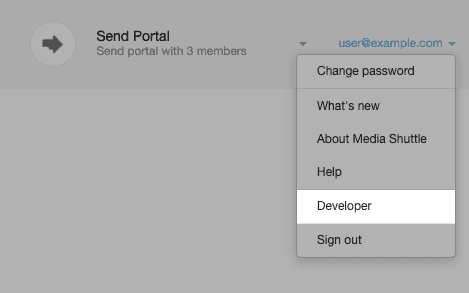
Click to open the User menu in the top right-hand corner of the window.
-
Click Developer to view your API key.
- Click Copy to Clipboard to copy your API key to the clipboard.
Note: Only one API key can be active at a time. Regenerating an API key will invalidate the current key and create a new API key. Once a new API key is generated, you cannot use the previous key to access the API.